
Linux
An open-source family of operating systems used to run servers, containers, developer environments, and cloud infrastructure.
Explore Linux.
Browse the overview, concept map, and topic tabs for commands, paths, tools, and concepts.
Why it exists.
It solves the need for a stable, automatable, scriptable operating environment across local and production systems.
Where it shines.
Servers, containers, cloud instances, automation runners, and workloads that benefit from composable command-line tooling.
Where not to use it.
Do not treat a distribution choice as a complete security or operations strategy, and do not assume every workload needs Linux-specific administration.
What it is made of.
- Kernel
- Distribution and packages
- Shell and processes
- Filesystem and permissions
- Networking
How it works.
- A system boots the kernel and services
- Processes run with permissions and resources
- Operators automate through the shell and APIs
- Packages and configuration are updated declaratively
Linux at a glance.
Explore the building blocks in the topic tabs.
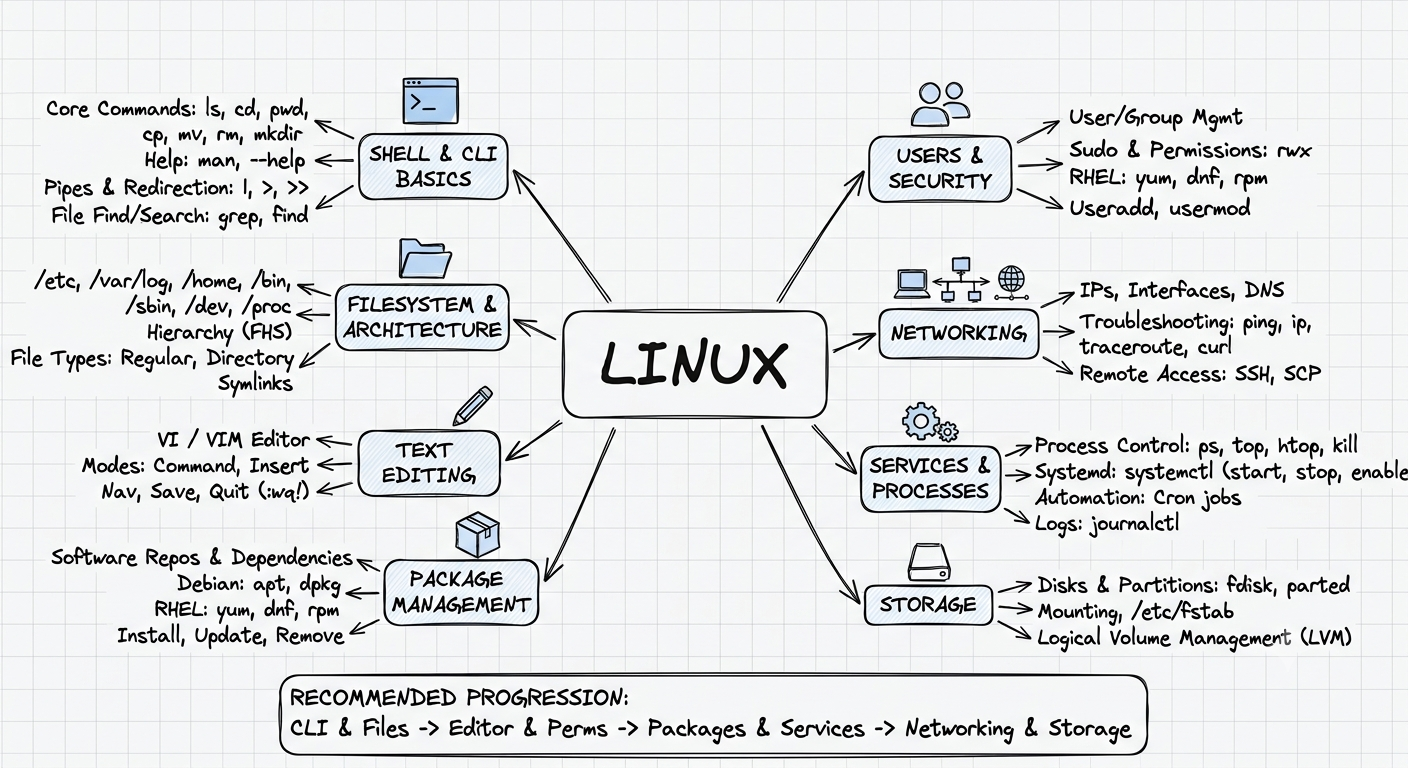
Shell & CLI basics
- pwd
- Prints the current working directory.
pwd - ls / cd
- Lists directory contents and changes directories.
ls -la && cd /var/log - cp / mv / rm
- Copies, moves, renames, and removes files or directories.
- Pipes & redirection
- Connects command output or writes it to files with `|`, `>`, and `>>`.
- grep / find
- Searches text and locates files by name or other attributes.
Filesystem & architecture
- /etc /var /home
- Common locations for configuration, changing system data, and user files.
- /bin /sbin /dev /proc
- Locations for executables, administration tools, devices, and process metadata.
- FHS
- Filesystem Hierarchy Standard: conventions for where Linux stores system content.
- File types
- Regular files, directories, and symbolic links are common filesystem entry types.
Text editing
- vi / Vim
- Modal terminal editors commonly available on Linux systems.
- Command / insert modes
- Vim uses command mode for navigation and insert mode for typing.
- :w / :q / :wq
- Save, quit, and save-then-quit commands in Vim.
Package management
- Repositories & dependencies
- Package sources and the software relationships needed for an install.
- apt / dpkg
- Debian-family tools for dependency-aware and low-level package operations.
- yum / dnf / rpm
- Red Hat-family tools for dependency-aware and low-level RPM operations.
- Install / update / remove
- The basic lifecycle for adding, maintaining, and uninstalling software.
Users & security
- User / group management
- Identities and collections used to assign ownership and access.
- sudo
- Runs an approved command with elevated privileges.
- rwx permissions
- Read, write, and execute access for owner, group, and others.
- useradd / usermod
- Creates accounts and changes their properties, groups, or shells.
Networking
- IPs / interfaces / DNS
- Addresses, network connections, and hostname resolution.
- ping / ip / traceroute
- Checks reachability, inspects local networking, and traces network hops.
- SSH / SCP
- Secure remote shell access and secure file copying.
Commands
- ip
- Shows interfaces, IP addresses, and routes.Use case
Check this machine’s addresses and outbound gateway.
ip -br address ip route - ping
- Checks ICMP reachability and round-trip time.Use case
Check whether a host responds. A timeout may mean ICMP is filtered; it does not prove a service is down.
ping -c 4 1.1.1.1 - getent hosts
- Resolves names using system configuration, including /etc/hosts and DNS.Use case
Check whether the Linux host can resolve the name your application uses.
getent hosts example.com - curl
- Makes HTTP requests and displays responses.Use case
Check an endpoint’s status, headers, and body with a bounded wait.
curl -i --connect-timeout 5 --max-time 10 https://example.com - ss
- Inspects sockets and listening TCP ports.Use case
Check which addresses and ports services listen on. Other users’ process details may require sudo.
ss -ltnp - ssh
- Opens an encrypted remote shell.Use case
Connect to a server to inspect services and logs. Replace the username and host with your own.
ssh deploy@server.example.com
Services & processes
- ps / top / htop / kill
- Inspects, monitors, and signals running processes.
- systemd / systemctl
- The service manager and its command-line control utility.
- Cron jobs
- Scheduled commands that run at recurring times.
- journalctl
- Reads logs collected by the systemd journal.
Commands
- systemctl status
- Shows a systemd service’s state and recent log entries.Use case
Check whether a service is running or failed. Replace nginx with your service’s unit name.
systemctl status nginx --no-pager - systemctl list-units
- Lists systemd units filtered by type or state.Use case
Find failed services when investigating a host issue.
systemctl list-units --type=service --state=failed - systemctl start / stop / restart
- Starts, stops, or restarts a systemd service immediately.Use case
Restart a service after a change that requires it. Restarting interrupts the service; choose the action you need.
sudo systemctl restart nginx - systemctl reload
- Asks a running service to reload its configuration, if supported.Use case
Apply a validated Nginx configuration without restarting the service. Reload support depends on the unit.
sudo nginx -t && sudo systemctl reload nginx - systemctl enable / disable
- Controls whether a service is configured to start at boot.Use case
Enable a service at boot and start it now. Use disable to remove boot startup; add --now to also stop it.
sudo systemctl enable --now nginx - journalctl
- Reads logs from the systemd journal.Use case
Inspect a service’s recent errors, then follow new log entries. Reading system logs may require sudo.
journalctl -u nginx --since "30 minutes ago" --no-pager journalctl -u nginx -f - ps / top
- Lists processes and monitors live CPU and memory usage.Use case
Find a service’s processes and investigate resource usage. Press q to exit top.
ps -C nginx -o pid,ppid,%cpu,%mem,args top - kill
- Sends a signal to a process by PID; TERM requests graceful termination.Use case
Ask an unmanaged process to exit after verifying its PID with ps. For systemd services, use systemctl stop instead.
kill -TERM <PID>
Storage
- Disks & partitions
- Block devices and the regions carved out for filesystems.
- fdisk / parted
- Utilities for inspecting and editing partition tables.
- Mounting /etc/fstab
- Attaches filesystems to directories and records persistent mounts.
- LVM
- Logical Volume Manager (LVM) pools disks or partitions into flexible storage: physical volumes (PVs) feed a volume group (VG), and logical volumes (LVs) take space from that pool. A filesystem lives on an LV and is mounted at a directory. Growing storage may require expanding each layer; LVM is not a backup or automatic redundancy.
Commands
- df
- Reports used and available space on mounted filesystems.Use case
Check free space and filesystem type; check inodes when writes fail despite available bytes.
df -hT df -i - du
- Measures space used by files and directories.Use case
Find which directories under /var consume space. -x stays on one filesystem; sudo includes protected paths.
sudo du -xhd1 /var | sort -h - lsblk / findmnt
- Shows disks, partitions, filesystems, and mount relationships.Use case
Identify the correct device and filesystem before making storage changes. Example device names throughout this kit are placeholders for your verified layout.
lsblk -o NAME,SIZE,TYPE,FSTYPE,MOUNTPOINTS findmnt /data - pvs / vgs / lvs
- Inspects LVM physical volumes, volume groups, and logical volumes.Use case
Check which disks back an LV and how much unallocated capacity remains in its VG. LVM tools may need installation.
sudo pvs sudo vgs sudo lvs -o +devices - mkfs.ext4 / mount
- Creates an ext4 filesystem and attaches it to a directory.Use case
Add a separate data disk after attaching it through your VM or cloud provider. This example uses an entire new, empty /dev/sdb; formatting destroys existing data. Verify the device and backups first. Do not run this on an existing LVM physical volume.
sudo mkfs.ext4 /dev/sdb sudo mkdir -p /data sudo mount /dev/sdb /data df -hT /data - blkid / /etc/fstab
- Finds filesystem UUIDs and configures persistent mounts.Use case
After mounting the new ext4 disk, back up /etc/fstab and add a line using its actual UUID. The commented line is an example entry, not a shell command. Validate before rebooting.
sudo blkid /dev/sdb sudo cp /etc/fstab /etc/fstab.bak sudoedit /etc/fstab # UUID=<actual-uuid> /data ext4 defaults 0 2 sudo findmnt --verify --verbose - pvcreate / vgextend
- Initializes a new LVM physical volume and adds it to an existing volume group.Use case
Add a verified empty disk to vg_data instead of mounting it separately. This is an alternative to formatting /dev/sdb directly; pvcreate writes disk metadata. Check backups and device identity first.
sudo pvcreate /dev/sdb sudo vgextend vg_data /dev/sdb sudo vgs - vgcreate / lvcreate
- Creates an LVM storage pool and a logical volume within it.Use case
For a new setup, after pvcreate on an empty disk, create vg_data and a 20 GiB data LV. Then format /dev/vg_data/lv_data and mount it using the earlier commands with that device path. Use vgcreate only for a new VG.
sudo vgcreate vg_data /dev/sdb sudo lvcreate -L 20G -n lv_data vg_data - growpart / pvresize
- Grows a partition into adjacent free space and lets LVM recognize the larger physical volume.Use case
After expanding a VM or cloud disk and confirming its new size with lsblk, grow its LVM partition. This example assumes /dev/sda3 is the PV with free space immediately after it. Back up first. For a whole-disk PV, skip growpart and run pvresize on the disk.
sudo growpart /dev/sda 3 sudo pvresize /dev/sda3 sudo vgs - lvextend
- Allocates more VG space to a logical volume.Use case
Add 10 GiB to an existing LV when vgs shows enough free space. This changes the block device size; grow the filesystem next so df reflects it. Confirm backups and the LV path first.
sudo lvextend -L +10G /dev/vg_data/lv_data - resize2fs / xfs_growfs
- Grows a filesystem to use an already enlarged LV or partition.Use case
Run only the command matching the filesystem shown by findmnt: resize2fs takes the ext4 device; xfs_growfs takes the mounted XFS path. For a non-LVM partition, grow the partition first and skip pvresize and lvextend. XFS must be mounted and cannot be shrunk.
findmnt -no SOURCE,FSTYPE /data
# For ext4:
sudo resize2fs /dev/vg_data/lv_data
# OR for mounted XFS:
sudo xfs_growfs /data
df -hT /data